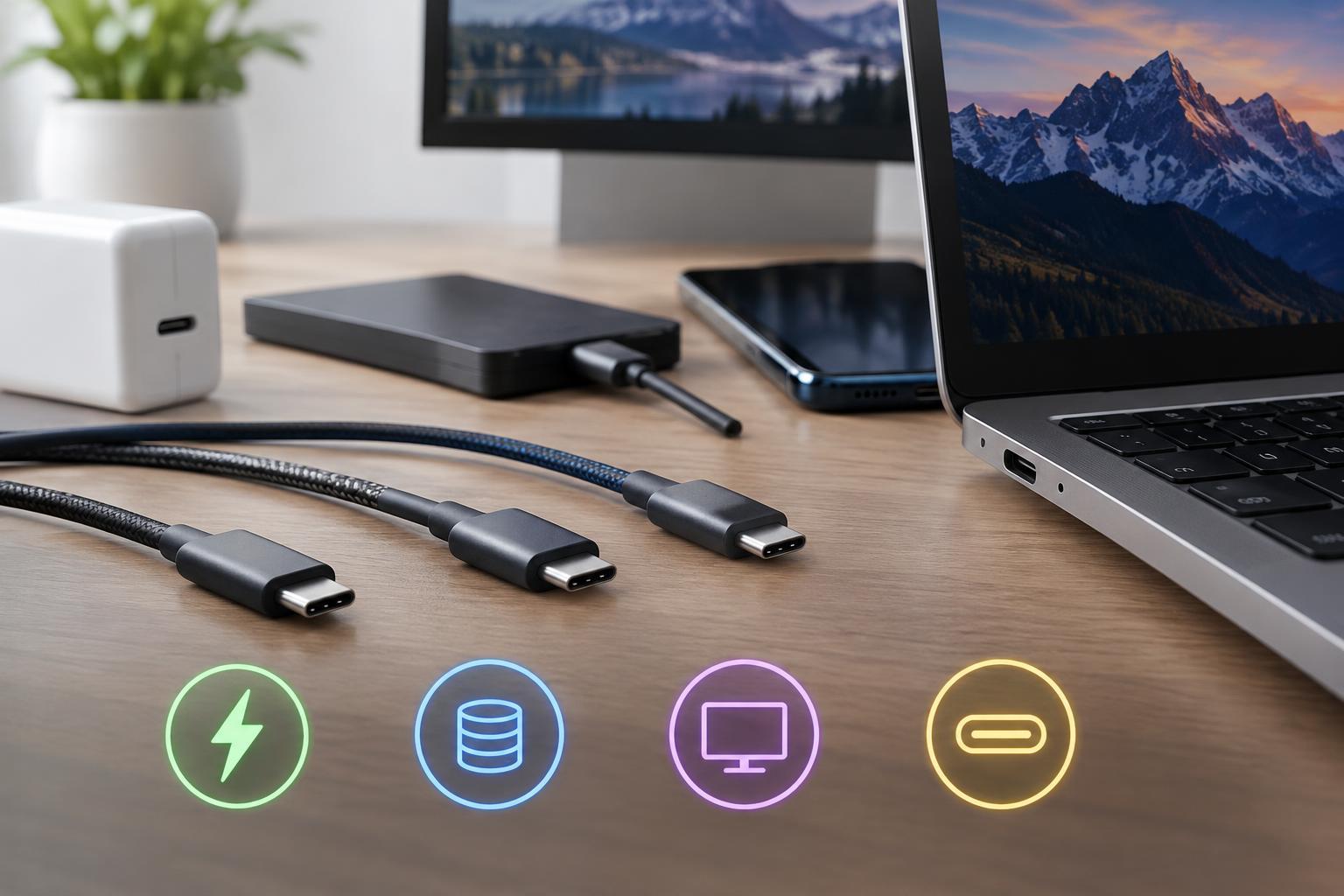
One connector, several independent capabilities
USB-C is the small, reversible connector found on laptops, phones, monitors, chargers, and accessories. Its shape makes connecting devices easier, but it does not tell you everything a connection supports. Two identical-looking ports can have very different charging, data, and display capabilities.
Think of USB-C as the physical connection rather than a performance rating. USB standards describe data transfer, USB Power Delivery governs compatible power negotiation, and features such as DisplayPort Alternate Mode enable video. A manufacturer can support some of these capabilities without supporting all of them.
What works depends on the complete connection: the host device, its particular port, the cable, and the accessory. Adapters and docks add further requirements. A premium cable cannot add a capability that the computer’s port lacks, and a capable port cannot overcome an unsuitable cable.
Charging speed comes from power negotiation
Charging power is measured in watts, calculated from voltage multiplied by current. Many USB-C devices use USB Power Delivery, or USB PD, to negotiate a compatible power level. The charger advertises supported options, and the receiving device requests what it can use. Some fast-charging combinations also require features such as Programmable Power Supply, known as PPS.
The wattage printed on a charger is a maximum capability, not a promise that every device will receive that amount. A phone connected to a compatible high-wattage laptop charger normally draws only the power it supports. Charging can also slow as a battery fills, when temperatures rise, or while the device manages its power needs.
The cable matters too. Common USB-C power ratings include 60W and 240W, while older cables may carry a 100W rating. Power above 60W requires a suitable electronically marked 5A cable; the highest USB PD Extended Power Range levels require an EPR-compatible cable. High-power charging needs compatible support throughout the connection, not just a charger with a large number.
Multiport chargers introduce another limit: their advertised total output may be shared. Connecting a second device can reduce the power available to the first. Check the charger’s per-port specifications and supported power profiles, especially for a laptop that needs substantial power while operating.
Data speed is separate from charging power
A cable that charges a laptop quickly may transfer files slowly. Some USB-C cables provide USB 2.0 data rates, with a theoretical maximum of 480Mbps, despite supporting substantial charging power. Faster connections require additional cable capabilities and compatible ports at both ends.
Look for an explicit data rate, such as 5Gbps, 10Gbps, 20Gbps, 40Gbps, or 80Gbps, rather than relying on the words “USB-C” or “fast.” These rates describe the connection’s nominal bandwidth, not guaranteed file-copy performance. Protocol overhead, storage speed, and other bottlenecks reduce actual throughput.
For example, an external SSD with a 10Gbps interface cannot reach that connection speed through a USB 2.0 cable. Conversely, a faster cable will not make a slower drive interface faster. Compatibility between specific modes matters as well, so compare the supported standards of the host and accessory rather than assuming every higher-numbered port supports every lower-speed mode.
Video requires explicit display support
A USB-C port does not automatically provide a video output. Many computer ports support DisplayPort Alternate Mode, which carries DisplayPort signals over USB-C. Compatible USB4 and Thunderbolt connections can also carry display traffic. A basic charging or data-only port may offer neither option.
For a direct USB-C monitor connection, check that the computer port supports video, the monitor’s chosen USB-C input accepts it, and the cable supports the required display connection. For a USB-C-to-HDMI adapter, verify the adapter’s source requirements and supported resolution and refresh rate. Many such adapters work in only one direction.
Docking stations can complicate matters because displays, storage, and networking may share connection bandwidth. Some configurations trade available USB data bandwidth for display capacity. A dock’s maximum display count or resolution may also depend on the computer’s graphics capabilities and operating system, not merely the dock’s specification.
How to buy and troubleshoot without guessing
Start with the task. For charging, compare the device’s requirements with the charger’s power profiles and the cable’s wattage rating. For storage, match the drive interface, host port, and cable data rate. For a monitor, confirm video support and the desired resolution and refresh rate across the entire connection.
Use product specifications and clear certification markings where available. A wattage label describes power capability, not data speed; a bandwidth label does not by itself explain every charging or display feature. Avoid treating vague descriptions such as “full-featured” as substitutes for explicit ratings.
When something fails, simplify the setup. Remove the dock, connect directly where possible, and test with a cable known to support the task. Check the exact port, since neighboring USB-C ports can differ. Labeling cables by power and data capability can prevent repeated guesswork: matching connectors are only the starting point.