Speed: Why an SSD Changes Everyday Computing
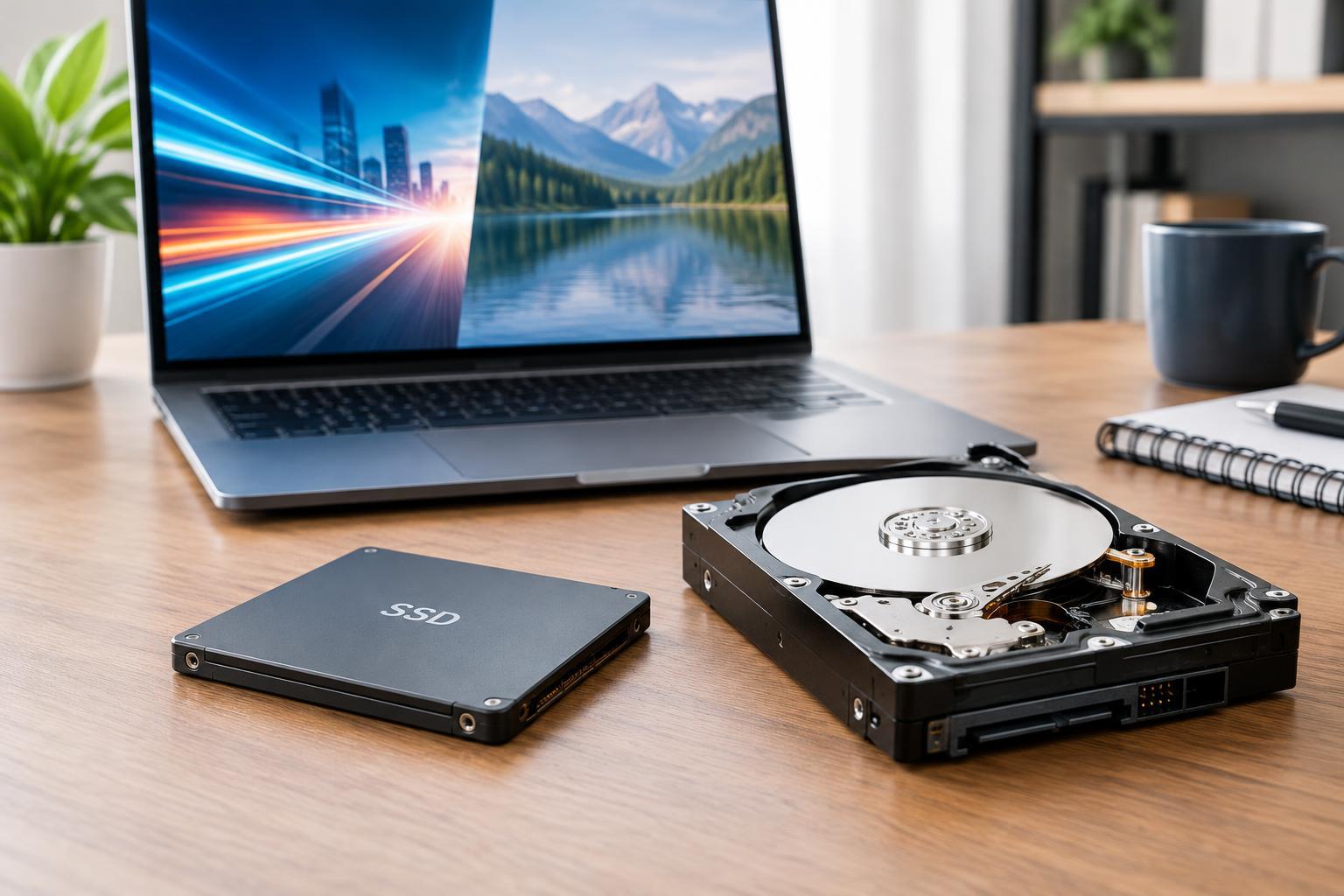
A solid-state drive, or SSD, stores data in flash memory. A hard disk drive, or HDD, stores it magnetically on spinning platters, using moving heads to read and write. This mechanical difference explains much of the performance gap: an SSD can access scattered files without waiting for physical parts to move.
That advantage matters when starting an operating system, opening applications, installing software, or switching between tasks that access storage. An HDD can handle these jobs, but delays become more noticeable when several requests compete for its attention. For a computer that still boots from an HDD, moving the operating system and applications to an SSD is often a particularly noticeable upgrade.
Not all SSDs perform alike. SATA SSDs are limited by the SATA interface, while NVMe SSDs communicate over PCIe and can support much higher transfer rates. However, a higher advertised maximum does not guarantee a proportionally faster experience. Everyday tasks may show a smaller difference between two SSDs than between either SSD and an HDD.
Capacity and Cost: Pay for the Storage You Actually Need
HDDs generally offer more capacity for the same purchase price, making them attractive for large photo libraries, video collections, and other bulky files. SSDs usually cost more per unit of capacity, but their responsiveness can justify that premium for frequently used software and active projects. Compare drives with similar capacities and intended uses rather than judging by sticker price alone.
Start by checking how much space your files occupy, then allow for growth, updates, and temporary working files. Avoid buying a drive that will be nearly full immediately. Free space gives you room to manage files, and on SSDs it can also help the controller maintain write performance, although the effect varies by model and workload.
A mixed setup can offer good value: use an SSD for the operating system, applications, and current work, with an HDD for less frequently accessed files. Include any enclosure, adapter, installation, or backup drive in your budget. Cheap primary storage is not a complete solution if there is no separate copy of important data.
Durability: Physical Toughness Is Not the Same as Data Safety
Because SSDs have no moving parts, they generally tolerate bumps and vibration better than HDDs, especially during operation. This makes them a practical choice for laptops and portable drives. HDDs deserve more careful handling while powered on, when their spinning platters and moving heads are active. Neither type should be treated as indestructible.
SSDs have finite write endurance, often expressed as terabytes written, or TBW. This rating is a useful comparison point, not a countdown to a guaranteed failure. Typical personal use is different from continuously recording video or writing large datasets. For write-heavy work, examine endurance ratings and warranty conditions alongside capacity and speed.
Both technologies can fail because of electronics, firmware, heat, power problems, or other faults. Neither is a guaranteed permanent archive when left unpowered. Keep important files in multiple independent copies, with at least one stored separately from the main device. A backup drive that remains connected can still be exposed to accidental deletion or malicious software.
Compatibility and Performance Beyond the Label
Before buying, check your computer’s supported interfaces, drive sizes, and available slots. A 2.5-inch SATA SSD can replace an HDD in many systems, but not every computer has an accessible drive bay. M.2 describes a physical format rather than a single interface: M.2 drives may use SATA or PCIe, and the slot must support the chosen drive’s protocol and dimensions.
For external storage, the connection can limit performance. A fast NVMe SSD inside an enclosure may deliver little advantage if the enclosure, cable, or computer port is the bottleneck. Check the complete connection path rather than assuming that every USB-C port offers the same speed.
Sustained workloads also deserve attention. Some SSDs slow down after their fast write cache fills, and heat can reduce performance. Some HDDs use shingled magnetic recording, or SMR, which can be less suitable for frequent sustained rewrites. Match the specific drive to the task rather than relying only on its SSD or HDD label.
Choose Around Your Main Workload
For a general-purpose desktop or laptop, an SSD is usually the best starting point for primary storage. For gaming, it helps loading and asset access, but should not be expected to increase frame rates universally. For video editing and other large active projects, a suitable SSD can improve file handling, although the processor, memory, and software also affect results.
For bulk media storage and capacity-focused backups, an HDD can be a sensible choice when slower access is acceptable. Portable work favors an SSD’s shock resistance and smaller form factors. The practical rule is to buy speed for the files you actively use, capacity for what you retain, and independent backups for what you cannot replace.