What Compression Preserves—and What It Removes
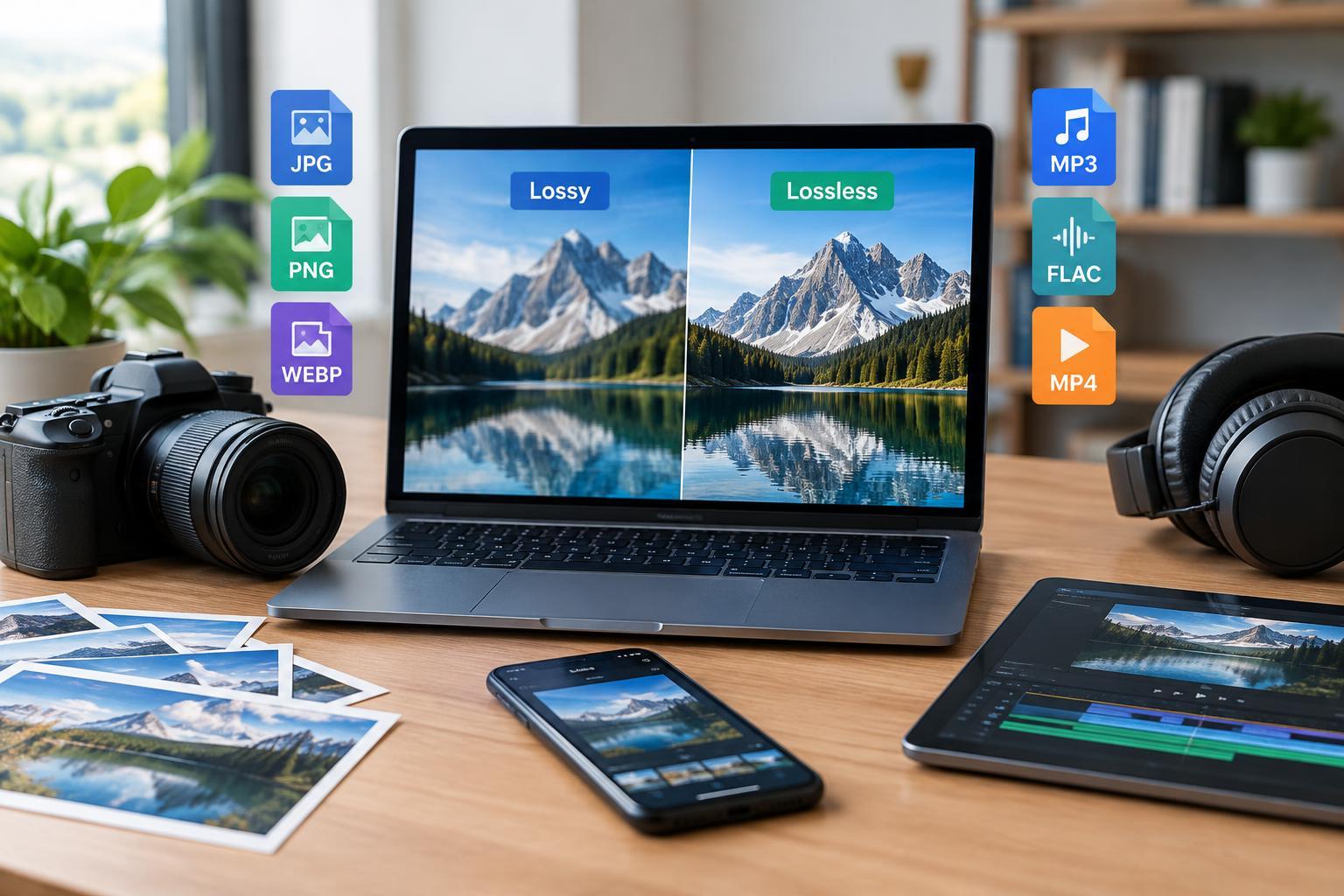
Compression reduces the amount of data needed to represent a file. Lossless compression does this reversibly: when the data is decoded, the original information is restored exactly. A ZIP archive is a familiar example. Lossy compression discards information to achieve smaller files, typically targeting details that people are less likely to notice. Those discarded details cannot be recovered simply by saving the result in another format.
Neither approach is universally better. Lossless compression suits information that must remain intact, including documents, software, and master media assets. Lossy compression is often useful for delivering photographs, music, and video when storage or bandwidth matters. Its effects depend on the content and encoding settings. A compressed photograph may look excellent at its intended viewing size while showing artifacts under close inspection.
A File Extension Does Not Tell the Whole Story
A format defines how information is stored, while a codec encodes and decodes media. A container packages media streams and related information. These distinctions matter most with audio and video: an MP4 extension identifies a container, not a specific level of quality. Two MP4 files can use different codecs, resolutions, and encoding settings, producing very different results.
Some image formats also support multiple compression approaches. WebP, for example, offers lossy and lossless modes. Even a lossless format cannot guarantee that the entire editing workflow preserved everything: resizing, reducing color depth, or flattening layers can remove information before compression begins. Check export settings rather than relying on the extension alone. Also confirm that the intended browser, application, or device can open the result.
Choosing Formats for Photographs, Screenshots, and Graphics
For photographs intended for everyday sharing, JPEG remains widely compatible, while WebP and AVIF can offer efficient alternatives where supported. Choose dimensions appropriate to the destination, then adjust compression while inspecting meaningful details such as faces, foliage, and gradients. Excessive lossy compression can introduce blocks, smeared textures, or halos around edges. Sending a full-resolution original is often unnecessary when the image will only appear in a small preview.
For screenshots, interface elements, diagrams, and text-heavy images, PNG is often a sensible lossless choice. Sharp edges and small lettering tend to reveal lossy artifacts more readily than natural textures. PNG also supports transparency, but photographic PNG files can be much larger than suitable lossy alternatives. For logos and illustrations created as vectors, SVG can preserve scalable geometry and text, though an SVG containing embedded raster images does not make those images infinitely sharp.
Choosing Formats for Audio and Video
For audio masters or a music archive, FLAC preserves the encoded audio samples losslessly while typically taking less space than uncompressed PCM audio. WAV commonly stores uncompressed PCM, although the extension alone does not guarantee its contents. For listening and distribution, lossy formats such as MP3, AAC, or Opus can reduce file sizes substantially. The appropriate settings depend on the material, playback conditions, and compatibility requirements.
Video requires similar trade-offs, but truly lossless files can be impractically large for everyday use. Keep original recordings when future editing matters, and use an editing-friendly intermediate format if the workflow requires one. Such intermediates may be visually faithful without being mathematically lossless. For delivery, a well-configured lossy encode is usually practical. Evaluate motion, dark gradients, and fine textures, since a paused frame alone may not reveal distracting compression artifacts.
Avoid Repeated Lossy Recompression
A common source of unnecessary degradation is generation loss: repeatedly decoding and re-encoding already lossy media. Editing a JPEG, exporting it as another JPEG, and repeating the process can compound artifacts. Similar problems occur when converting compressed audio between lossy codecs or repeatedly exporting compressed video. Simply copying or renaming a file does not cause this loss, and some applications can perform certain operations without re-encoding.
Preserve the original and do ongoing work in an appropriate project or master format. Create delivery versions from that master rather than from previous exports. Converting a JPEG to PNG may prevent additional compression loss during subsequent PNG saves, but it does not restore discarded image detail. Likewise, converting an MP3 to FLAC produces a lossless representation of the decoded audio, not a recovered original recording.
Use a Simple Export Checklist
Before exporting, decide whether the file is a master, an editing asset, or a delivery copy. Then identify what must survive: exact data, transparency, layers, readable text, color information, or broad device compatibility. Keep an untouched source whenever possible. Remember that stripping metadata can remove useful attribution or capture information, even when the visible image remains unchanged.
Compare candidate exports at their intended viewing or listening conditions, not just by file size. Look for visible artifacts, listen for audible changes, and test playback or opening in the destination software. Choose the smallest version that meets the actual requirements, while keeping a suitable master for future use. The goal is not maximum compression at any cost, but avoiding losses that bring no meaningful benefit.