Start with the way you look for files
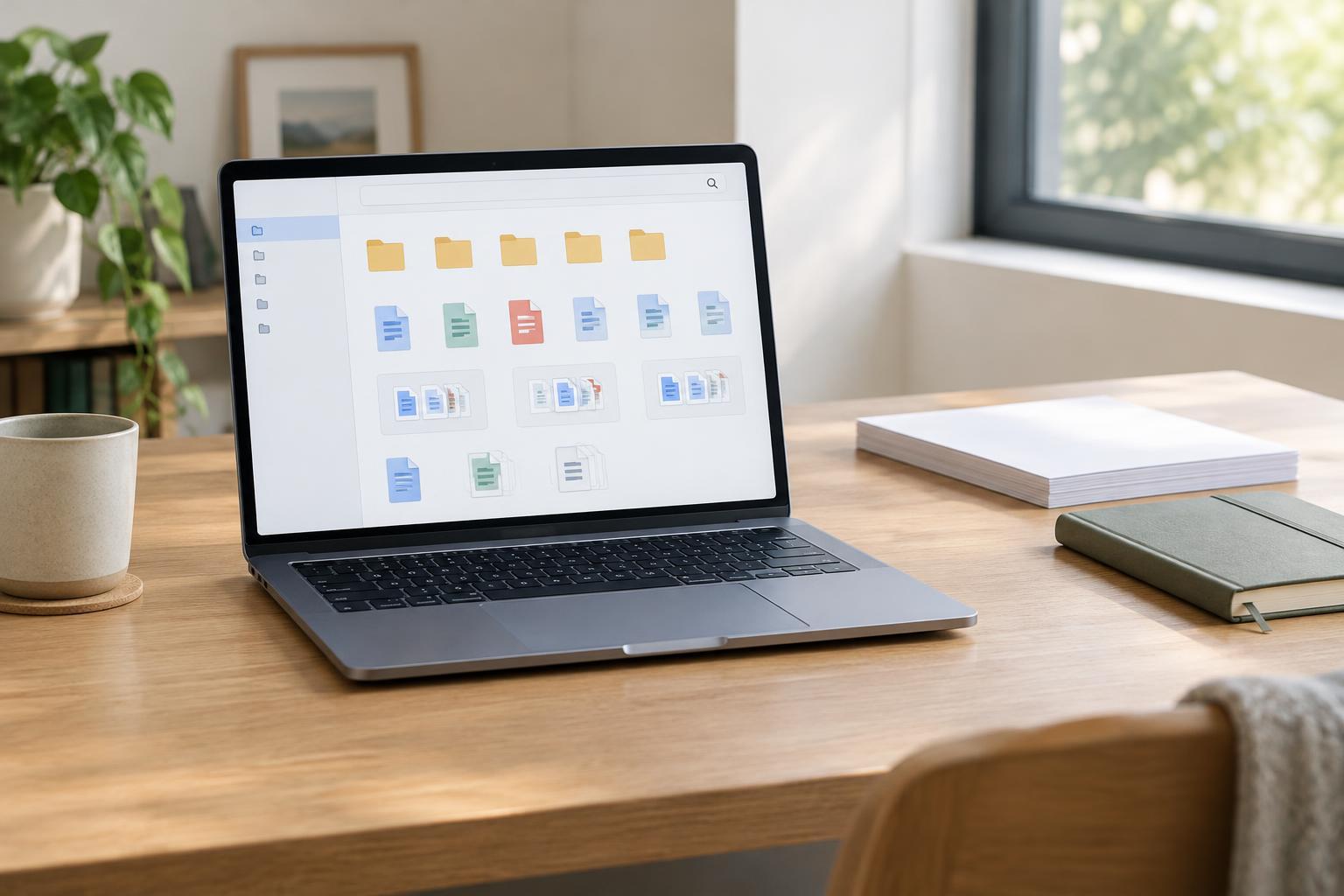
A file organization system works when it matches the questions you ask while searching. Do you remember the project, the client, the type of document, or roughly when you created it? Use the answer to choose your top-level folders. Someone who works across several projects may benefit from one folder per project; someone managing household documents may find categories such as Home, Travel, and Purchases easier to navigate.
Keep the first level small enough to scan. Deeply nested folders can make a file hard to locate, especially when it could reasonably belong in two places. If you repeatedly hesitate over where to save something, simplify the categories rather than adding another layer. An Inbox folder can hold files you have not sorted yet, provided you revisit it regularly.
Use filenames that make sense outside their folders
A descriptive filename helps when a file appears in search results, an email attachment, or a downloads list. Include the few details that distinguish it: a project or subject, the document type, and a date or version when relevant. For example, “Garden_plan_2026-03_draft” conveys more than “plan_new.” Pick a date format and use it consistently; placing the year first makes dated names easier to sort alphabetically.
Avoid names that rely on temporary context, such as “final,” “new,” or “latest.” Those labels can become misleading as soon as another revision arrives. Short names are still useful: the goal is to recognize a file without opening it, not to encode its entire history in the filename. If a team shares files, agree on a simple convention so that each person does not invent a different pattern.
Make versions deliberate
Multiple drafts are valuable when you may need to compare changes or undo a decision. They become a problem when several files all appear to be the finished copy. Decide which work needs retained versions and which work can use an application’s version history. Before relying on version history, check how that application handles deleted files and whether the history remains available if you move or export the document.
For files you manage manually, use an ordered label such as v01, v02, and v03, or a date when each revision is tied to a particular day. Keep the active version in a predictable place, and move superseded copies into a clearly named Archive folder if you need to retain them. Archiving makes a folder easier to browse, but it is not a substitute for keeping recoverable copies of important files.
Clean up duplicates without deleting useful work
Downloads, attachments, and exports often create apparent duplicates. Similar names do not prove that two files contain the same information: one might have comments, a different resolution, or recent edits. Before removing anything important, compare the file type, size, modification date, and, when needed, the contents. Take particular care with photos and documents copied between a phone, computer, and cloud storage.
Work in small batches rather than trying to reorganize everything at once. Start with a folder you use often, identify its obvious temporary files, and sort the remainder. A recurring ten-minute review of Downloads and Inbox can prevent the pile from growing again. If you want more ideas for building manageable routines around everyday tasks, browse Everyday Skills · Everyday Playbook for further reading.
Test the system before expanding it
An elegant folder tree is not useful if you cannot retrieve what you need. After organizing a small set of files, try to find a recent document without opening several folders. Then try an older one whose exact name you have forgotten. Use both folder navigation and your device’s search function. If search works better, make sure your filenames contain the terms you naturally remember.
Adjust the system when real use reveals friction. You might discover that a broad Projects folder needs subfolders, or that separate folders for every month create unnecessary clicks. Write down any naming rule you expect others to follow, but keep it brief. A workable system is one you can maintain on a busy day: save a file in a sensible place, give it a recognizable name, and know which copy to open next.