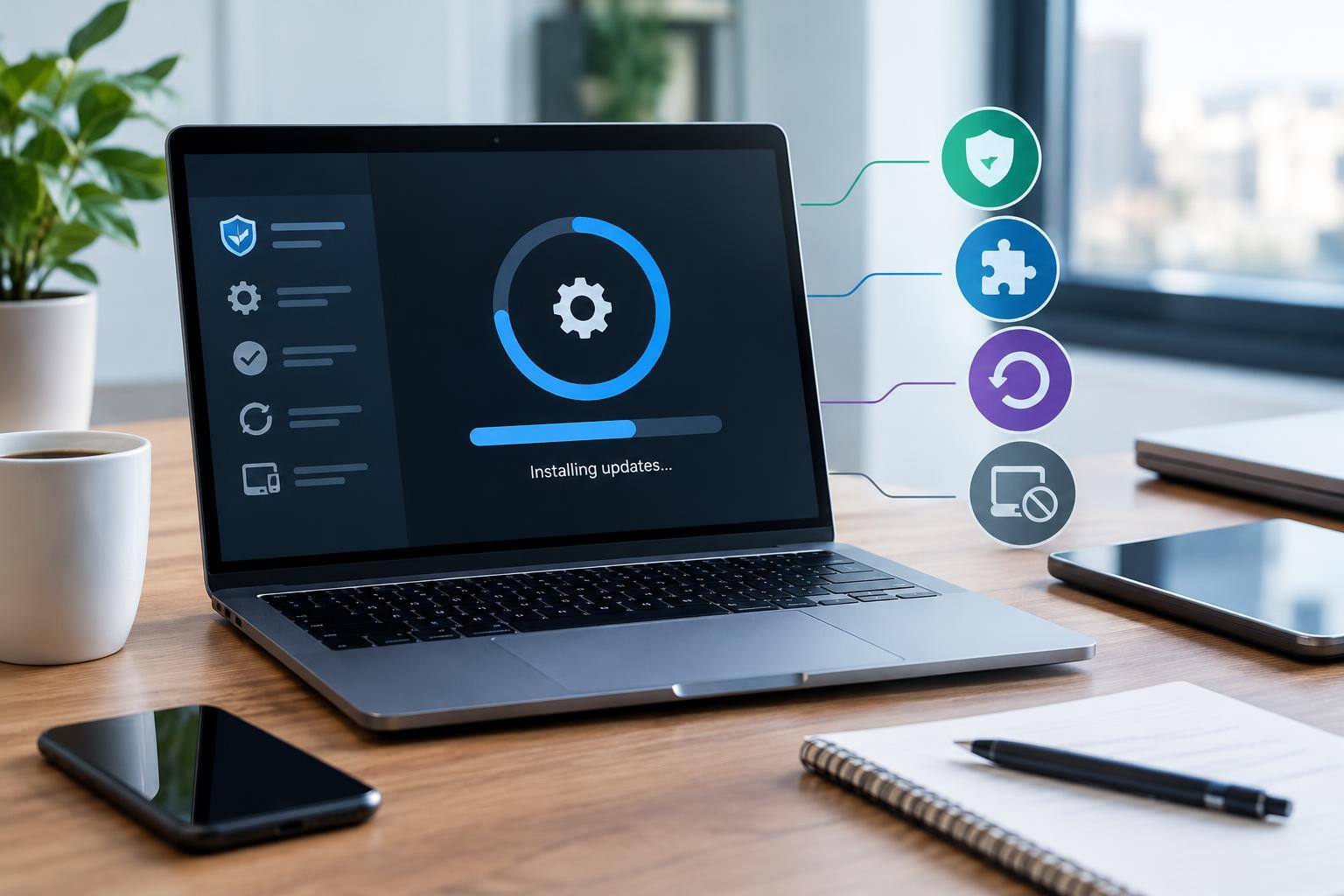
Understand What Each Update Changes
Good update management balances two risks: leaving known weaknesses unpatched and disrupting a working system. The aim is not to install everything instantly or postpone changes indefinitely. It is to identify what matters, prepare for likely problems, and update within a deliberate routine.
Security patches fix vulnerabilities that could allow unauthorized access, data exposure, or other harmful behavior. Bug fixes address reliability problems, while feature updates change capabilities or interfaces. Major operating system upgrades often introduce broader compatibility changes. These categories can overlap, so an update labeled as a feature release may also contain important security fixes.
Include more than laptops and phones in your plan. Browsers, extensions, routers, printers, connected home equipment, and device firmware may need updates too. Keep a simple inventory of important devices and applications, noting their versions, update settings, and support status. On work equipment, follow the organization's update process rather than changing managed settings yourself.
Prioritize Security Without Ignoring Reliability
Use automatic updates for software that benefits from frequent maintenance, especially browsers and everyday applications. Enable operating system security updates where practical, and choose installation windows that allow restarts without interrupting important work. An update that has downloaded but still needs a restart may not yet provide its intended protection.
Give higher priority to vendor advisories describing active exploitation or serious vulnerabilities in software you use. Internet-facing equipment, such as routers and remote-access systems, deserves particular attention. Get updates through built-in tools, official app stores, or the manufacturer's website. Unexpected messages urging you to download a security fix are not a trustworthy update channel.
For routine changes, a short, planned testing period can reveal compatibility problems before they reach every device. Urgent security fixes generally justify a faster response. If a patch cannot be installed immediately, use vendor-recommended mitigations where available, such as disabling an affected feature. Treat these as temporary measures, not replacements for the patch.
Check Compatibility Before Major Changes
Before a major upgrade, list the tools and accessories you cannot work without. Check whether the new version supports your essential applications, device drivers, peripherals, and required services. Older printers, specialist software, VPN clients, and plug-ins are common sources of friction. Confirm exact versions rather than assuming that support for a product name covers every release.
Read the vendor's release notes, system requirements, and known-issues information. Check available storage and whether prerequisites must be installed first. If you manage several similar devices, update one representative device before the others. Test real tasks: open an existing project, print a document, connect to a required service, and confirm that files save correctly.
Compatibility checks should be proportionate. A routine browser patch rarely needs the same preparation as an operating system upgrade on a workstation running specialist tools. Avoid turning testing into an open-ended delay. Set a decision point, record any blocking issue, and identify what would allow the update to proceed.
Prepare for Recovery and Verify the Result
Before a significant update, back up important files and confirm that the backup is accessible. File synchronization alone may not provide a dependable recovery path because deletions or unwanted changes can also synchronize. Where appropriate, use versioned backups or a system image, and keep a protected copy separate from the device being updated.
Check recovery requirements in advance. Have access to account credentials, encryption recovery keys, and installation or recovery media when relevant. Review whether the update supports rollback and what its limits are. A restore point or rollback option is useful, but neither should be treated as a guaranteed substitute for a backup.
Connect portable devices to power, allow enough uninterrupted time, and follow installation prompts. Do not interrupt firmware updates unless the manufacturer explicitly instructs you to do so. Afterward, confirm the installed version, check for further updates, and test essential functions. If something breaks, consult official troubleshooting guidance before attempting a rollback that could reintroduce security vulnerabilities.
Make a Plan for Unsupported Devices
A device can remain functional after its security support ends. That does not make it equally safe to keep using. Check the manufacturer's support information for the exact model and software version. If patches are no longer available, consider whether a supported upgrade, a compatible alternative operating system, or replacement is practical.
Reduce exposure while arranging a longer-term solution. Avoid using unsupported devices for sensitive accounts or confidential files. Remove unnecessary applications, disable unused network services, and disconnect equipment that does not need internet access. For connected appliances, a properly configured isolated network can restrict access to other devices, but it does not fix vulnerabilities in the appliance itself.
An offline role may extend useful life when the task permits it, though removable storage can still introduce risks. Antivirus software cannot replace missing operating system patches. Set a clear retirement or reassessment point instead of accepting indefinite exposure. Review your inventory regularly so that expiring support becomes a planned maintenance decision rather than a surprise.