Start by Separating Wi-Fi Problems from Internet Problems
Wi-Fi connects your devices to your home network; your internet service connects that network to the outside world. A slow download can result from either connection. Before buying equipment, compare performance near the router with performance in the rooms where you notice trouble. Use the same device and test service, and pause large downloads or backups to make comparisons more useful.
If possible, connect a computer to the router with an Ethernet cable and turn off that computer’s Wi-Fi. If the wired connection is also consistently slow, wireless coverage may not be the main issue. Your internet plan, provider connection, router, or the service you are accessing could be responsible. One speed test cannot identify the cause, so repeat checks at different times.
If Ethernet works well but Wi-Fi deteriorates as you move away, focus on wireless coverage. If only one device struggles, check its software updates, wireless capabilities, and power-saving settings. This simple triage helps avoid replacing an entire network to solve a problem limited to one room or one laptop.
Give Your Router a Better Location
Place the router near the center of the area where you actually use Wi-Fi, preferably on an open shelf rather than on the floor. A router at one end of a home must push its signal through more obstacles to reach the other end. Avoid hiding it inside a cabinet, behind a television, or beside large metal objects.
Walls and furniture affect radio signals differently. Concrete, masonry, metal, and foil-backed insulation can make coverage particularly difficult. Large water-filled objects, such as aquariums, can also weaken a signal passing through them. Keep some distance from microwave ovens and other potential interference sources, especially when troubleshooting problems on the 2.4 GHz band.
Try small placement changes before making a permanent installation. Moving the router onto a higher shelf or away from a wall may improve a troublesome room. Follow the manufacturer’s guidance for antenna positioning rather than assuming every antenna should point toward your devices. If the internet connection enters in an awkward location, a longer Ethernet cable may allow better router placement.
Use Frequency Bands According to Distance and Demand
The 2.4 GHz band generally reaches farther and handles obstacles better than higher-frequency bands, but it has less available capacity and often shares crowded airspace. It is useful for distant devices and many smart-home products. The 5 GHz band typically offers higher throughput at shorter distances, making it a good choice for nearby computers, televisions, and game consoles.
The 6 GHz band, supported by compatible Wi-Fi 6E and Wi-Fi 7 equipment, adds spectrum that can reduce competition with older devices. It is most useful when both the router and client support it and the signal path is relatively clear. It is not a guaranteed fix for distant rooms, and availability depends on local regulations.
A shared network name lets many routers steer compatible devices between bands automatically. Start with that arrangement unless it causes problems. Temporarily separating band names can help diagnose a device that keeps choosing an unsuitable connection. Leave channel selection on automatic initially; if congestion persists, review the router’s settings. On 2.4 GHz, a 20 MHz channel width is often a sensible choice in crowded areas.
Add Mesh Only When You Need More Coverage
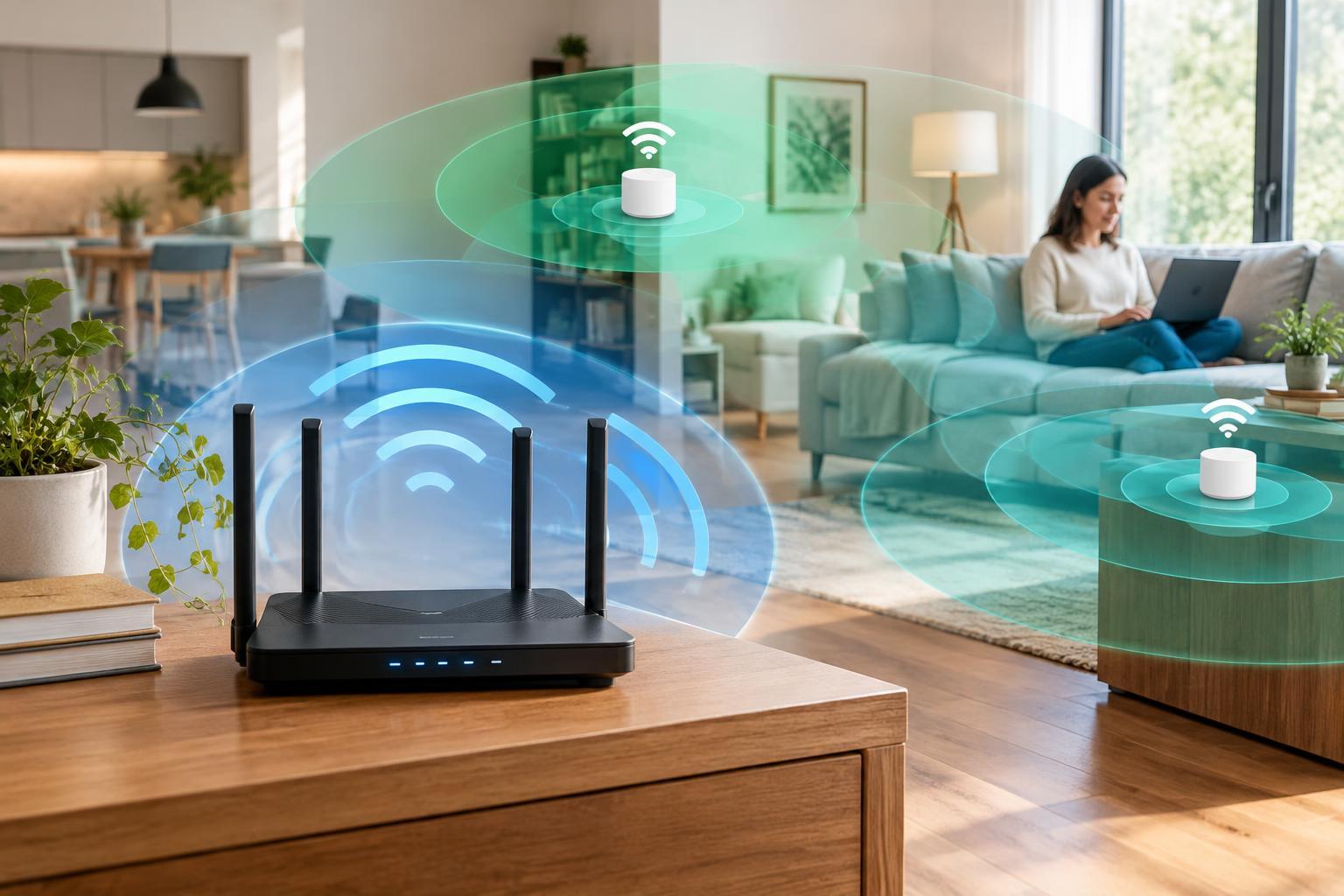
Mesh systems use multiple units to extend coverage under a coordinated network. They can help in larger homes, across multiple floors, or where one router cannot reach regularly used rooms. They will not increase the speed of your internet subscription, and adding nodes unnecessarily can create extra wireless contention rather than better performance.
Position a wireless mesh node between the main router and the weak area, where it still receives a solid connection. Putting it directly inside a dead zone gives it little useful signal to relay. The link between mesh units, called backhaul, matters as much as the connection between a device and its nearest node.
Ethernet backhaul is generally the most predictable option because it avoids using wireless airtime for traffic between units. If your home already has Ethernet cabling, a wired access point may solve the problem without a full mesh kit. Wireless mesh remains convenient when cabling is impractical, but thick walls can still limit it. Devices also influence when they switch nodes, so roaming is not always seamless.
Make Changes One at a Time and Retest
Begin with free improvements: update router firmware, improve placement, and check band settings. Then repeat your original tests in the same locations. Evaluate everyday tasks as well as download speed: a stable video call may matter more than a higher peak result.
Connect stationary, bandwidth-heavy devices by Ethernet when practical. This removes their traffic from Wi-Fi and can make wireless performance more consistent for mobile devices. Buy new equipment only after identifying whether the remaining limitation is coverage, capacity, or an aging router.