Start With Your Work and Your Workspace
Before comparing specifications, identify what your current display makes difficult. Do you constantly switch between windows, struggle to read small text, notice distracting reflections, or want smoother movement in games? These problems point toward different purchases. A larger screen may help with document comparison, while a higher refresh rate addresses motion rather than workspace.
Measure the usable depth and width of your desk, including the space occupied by a keyboard and monitor stand. A large display on a shallow desk can leave you turning your head frequently or sitting closer than you prefer. Check height adjustment, tilt, and mounting compatibility as well. A screen that fits your working position is often more useful than one with an impressive specification you rarely benefit from.
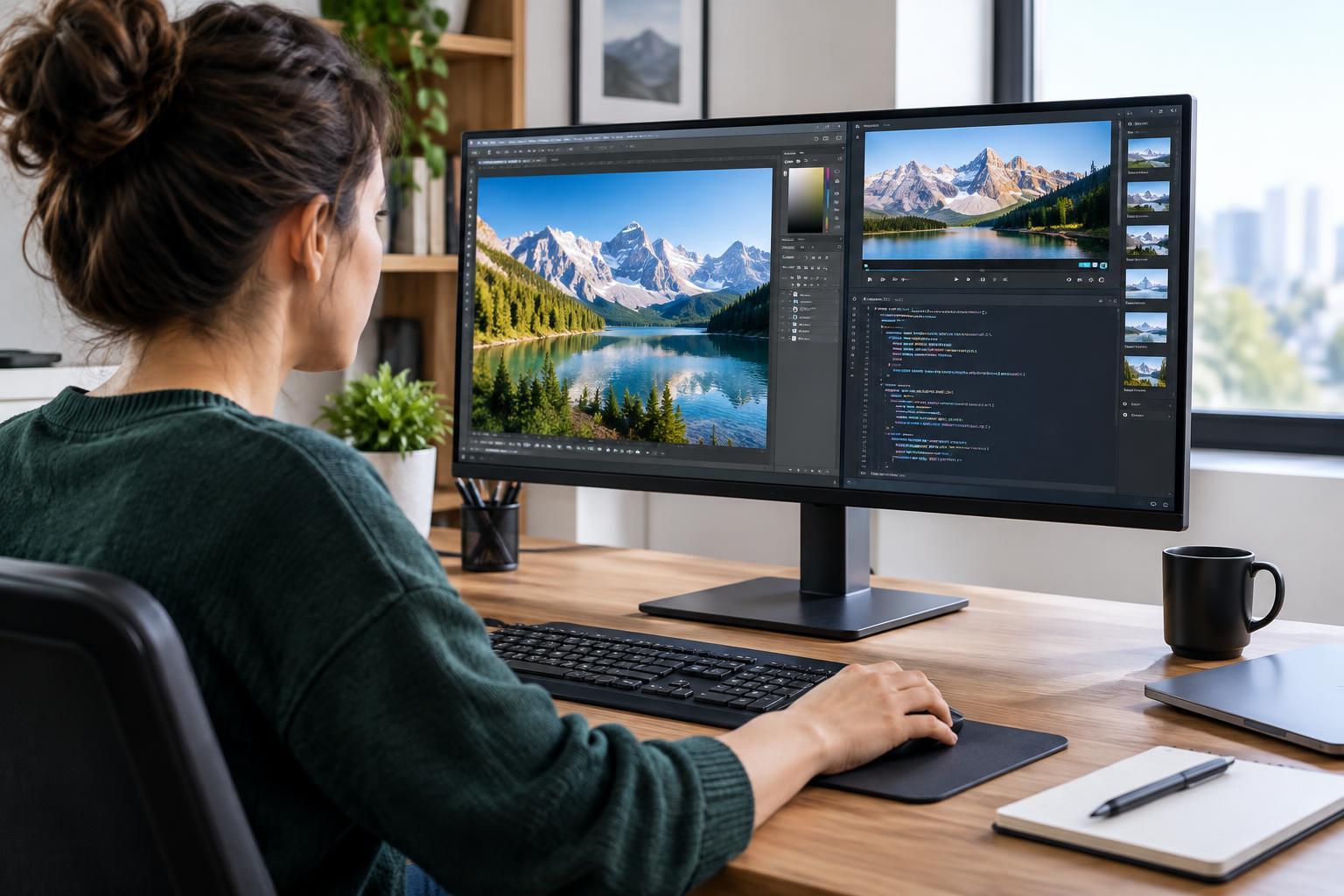
Consider whether one wide display or two separate monitors better matches your workflow. Two screens make it easy to keep applications visibly separated, but introduce a central bezel and additional cables. A single ultrawide screen offers uninterrupted space, although window organization becomes more important and some applications may not use its width effectively.
Treat Resolution and Screen Size as a Pair
Resolution describes the number of pixels a display contains. Common examples include 1920 × 1080, 2560 × 1440, and 3840 × 2160. More pixels can show finer detail, but resolution alone does not determine sharpness. The same resolution spread across a larger screen produces lower pixel density, making individual pixels and rough text edges easier to notice at close range.
Operating-system scaling changes how large text and interface elements appear. On a high-density display, increased scaling can keep menus readable while preserving smoother text and images. This means a higher-resolution monitor does not automatically provide proportionally more usable workspace. Your practical workspace depends on resolution, scaling, application behavior, and what you can comfortably read.
For a general-purpose desk setup, compare screen size and resolution together rather than treating either as a target. If possible, inspect text at your expected viewing distance. Test the applications you rely on, particularly older software that may look blurry or behave awkwardly when moved between monitors using different scaling settings.
Understand Refresh Rate Without Confusing It With Speed
Refresh rate, measured in hertz, describes how often a monitor updates its image. A higher rate can make scrolling, pointer movement, and animation look smoother. In games, the benefit also depends on how quickly the computer produces frames. A monitor cannot display new game frames that the graphics hardware has not rendered.
Pixel response time is different: it describes how quickly pixels transition between states. Slow transitions can leave trails behind moving objects. Aggressive settings intended to accelerate transitions can introduce bright or dark outlines, often called overshoot. Advertised response-time figures are difficult to compare because measurement methods and operating conditions differ.
For office work, prioritize clear text and a comfortable layout before chasing the highest refresh rate. For gaming, consider refresh rate, motion clarity, and adaptive-sync compatibility together. Adaptive sync can reduce tearing by coordinating display updates with frame delivery, but the supported range and compatibility depend on the monitor and connected hardware.
Look Beyond Panel Labels and Marketing Features
Panel technology influences viewing angles, contrast, and motion behavior, but it does not guarantee overall quality. IPS-type LCD panels generally offer stable colors across viewing angles. VA-type LCD panels often provide stronger contrast, though some models show noticeable dark-motion smearing. OLED displays can produce very deep blacks, but prolonged repeated static content creates a risk of uneven aging or burn-in.
Your room matters too. Reflections can make a display difficult to use even when its specifications look suitable. Matte surfaces diffuse reflections, while glossy surfaces can make reflected objects more distinct. Brightness controls and placement relative to windows may have a greater everyday impact than a headline brightness figure.
Be cautious about treating HDR support as proof of striking picture quality. Accepting an HDR signal is not the same as reproducing a broad brightness range effectively. Contrast, brightness capability, color performance, and, for LCDs, backlight control all matter. Unless HDR is central to your use, prioritize a consistently good standard image.
Check the Entire Connection Before Buying
Confirm that your computer, cable, dock, and monitor support your intended resolution and refresh rate together. A connector that physically fits does not guarantee every display mode will work. Laptop docks may impose additional limits when several monitors share a connection.
For a laptop setup, check whether a monitor’s USB-C port supports video input and supplies enough charging power for your machine. Also inspect the stand, controls, available ports, and return policy. Build your shortlist around the tasks you perform daily, then verify the complete setup rather than buying on one standout number.