1. Start with a permissions inventory
Smartphone permissions control access to sensitive resources, but it is easy to forget what you approved during setup. A useful audit asks whether each app still needs its access for something you actually do. The goal is not to deny everything: it is to match access to a clear purpose and choose the narrowest option that works.
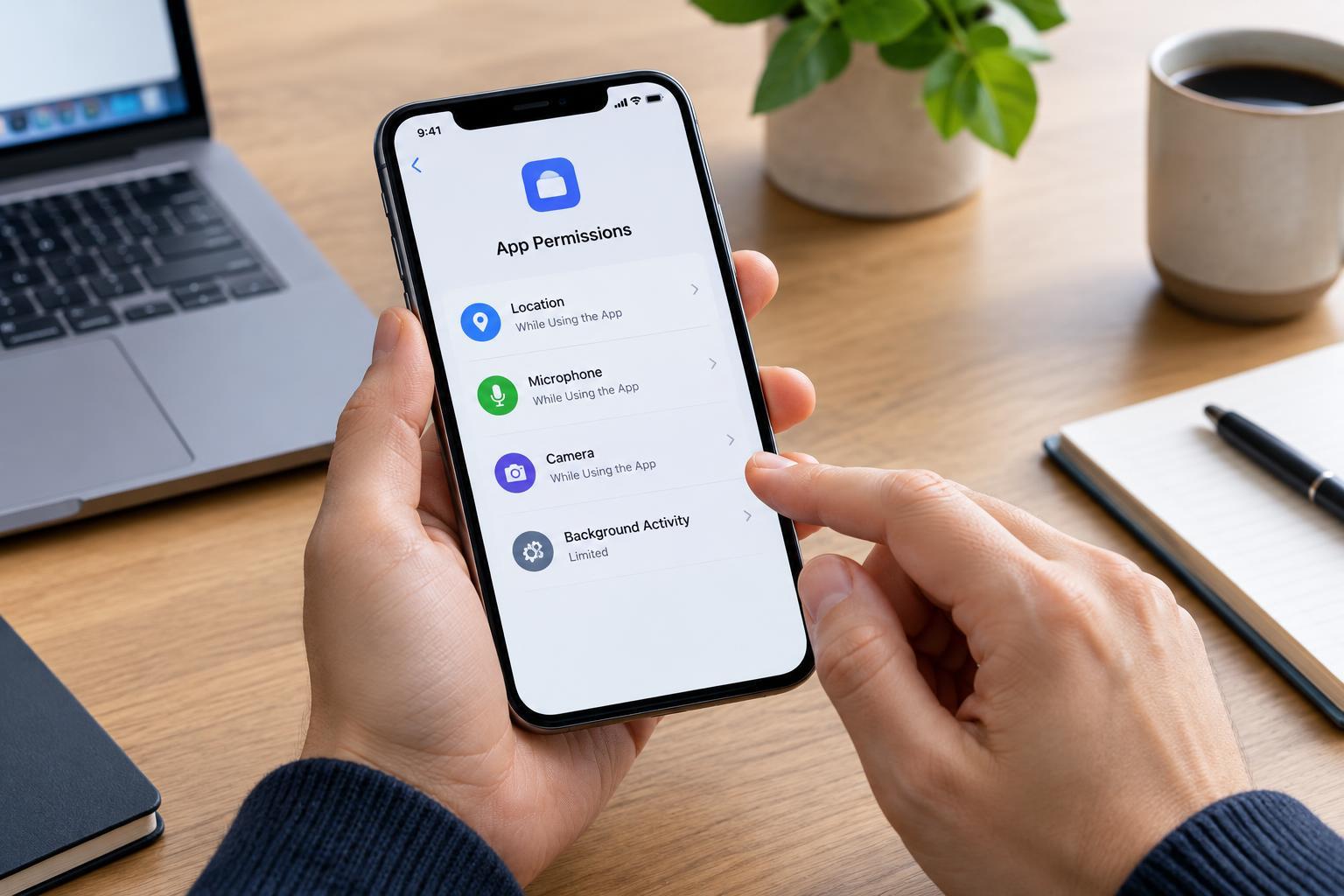
On an iPhone, start in Settings under Privacy & Security, then open categories such as Location Services, Microphone, and Camera. On Android, look for Privacy, Permission manager, or the Privacy dashboard. Names and paths vary by software version and manufacturer, so use Settings search if necessary. You can also inspect an individual app’s permissions from its settings page.
Prioritize apps you rarely use, apps with sensitive access, and anything you do not recognize. Delete software you no longer need. Where your phone offers recent-access history, compare it with your activity. An unexpected entry deserves investigation, but it is not automatically evidence of surveillance: a legitimate feature may explain it.
2. Reduce location access to the minimum
For each app with location access, ask two questions: does it need your location when you use it, and does it need to know where you are after you leave it? Navigation, nearby search, and local forecasts have different requirements. A weather app may work with a manually selected city, while turn-by-turn directions generally require accurate positioning.
Prefer access only while using the app when that supports the feature you need. If available, a one-time option can suit an occasional task. Disable precise location when an approximate area is sufficient. Exact choices differ across platforms, and granting location access does not mean every app receives the same level of detail.
Treat continuous or background location as a separate decision. It can support location sharing, route recording, or arrival-based reminders, but should have a purpose you understand. After reducing access, test those features. Some ongoing activities can continue under platform-specific rules, so check recent location access rather than assuming that leaving an app always stops tracking.
3. Check microphone and camera permissions separately
Microphone access makes sense for voice messages, calls, recording, or speech features. Camera access may support video calls, scanning documents, or taking pictures inside an app. Consider whether you use those functions. An app can have a legitimate reason to request a permission without needing it for your normal use.
Revoke access that has no current purpose. You can usually restore it later in Settings, and an app may prompt you when you next use the relevant feature. Review microphone and camera independently: scanning a QR code does not, by itself, require recording audio. Photo-library access is also separate from camera access, so check it if your concern includes stored images.
Modern versions of iOS and Android show indicators when the microphone or camera is active. Learn how to identify the responsible app through your phone’s controls or privacy tools. If access surprises you, stop the activity and review permissions. Indicators help you notice sensor use, but they do not explain what happens to captured content.
4. Understand what background controls actually do
Background access is not one universal permission. It includes separate controls for refreshing content, battery use, mobile data, location, and notifications. Restricting one does not necessarily disable the others, and an app disappearing from view does not establish that all its activity has stopped.
On iPhone, review Background App Refresh alongside location and mobile-data settings. Turning refresh off limits certain background updates; it is not a blanket ban on notifications or all background functions. On Android, inspect each app’s battery or background-usage settings and, where available, background mobile-data access. Manufacturers may offer different restriction levels.
Start with nonessential apps. Strong restrictions can delay synchronization, uploads, or reminders, depending on the app and platform. Be more cautious with tools you rely on for timely communication or ongoing tasks. Closing an app is not a substitute for reviewing its permissions and background settings.
5. Test your changes and make the audit repeatable
Change one group of settings at a time, then test a relevant task: make a call, scan a document, start navigation, or check whether a background upload completes. If something fails, restore only the access connected to that feature. Avoid granting every requested permission simply to dismiss an error.
Repeat the review periodically and after installing apps or enabling unfamiliar features. Where available, automatic permission removal for unused apps provides a useful safeguard. Keep the operating system and apps updated, since privacy controls and their behavior can change.
Finally, recognize the audit’s limits. Revoking permissions generally restricts future access; it does not erase information already collected or remove data from an online account. Review in-app privacy settings and account controls separately. A successful audit leaves each sensitive permission with a clear, current reason.