First, identify what is failing
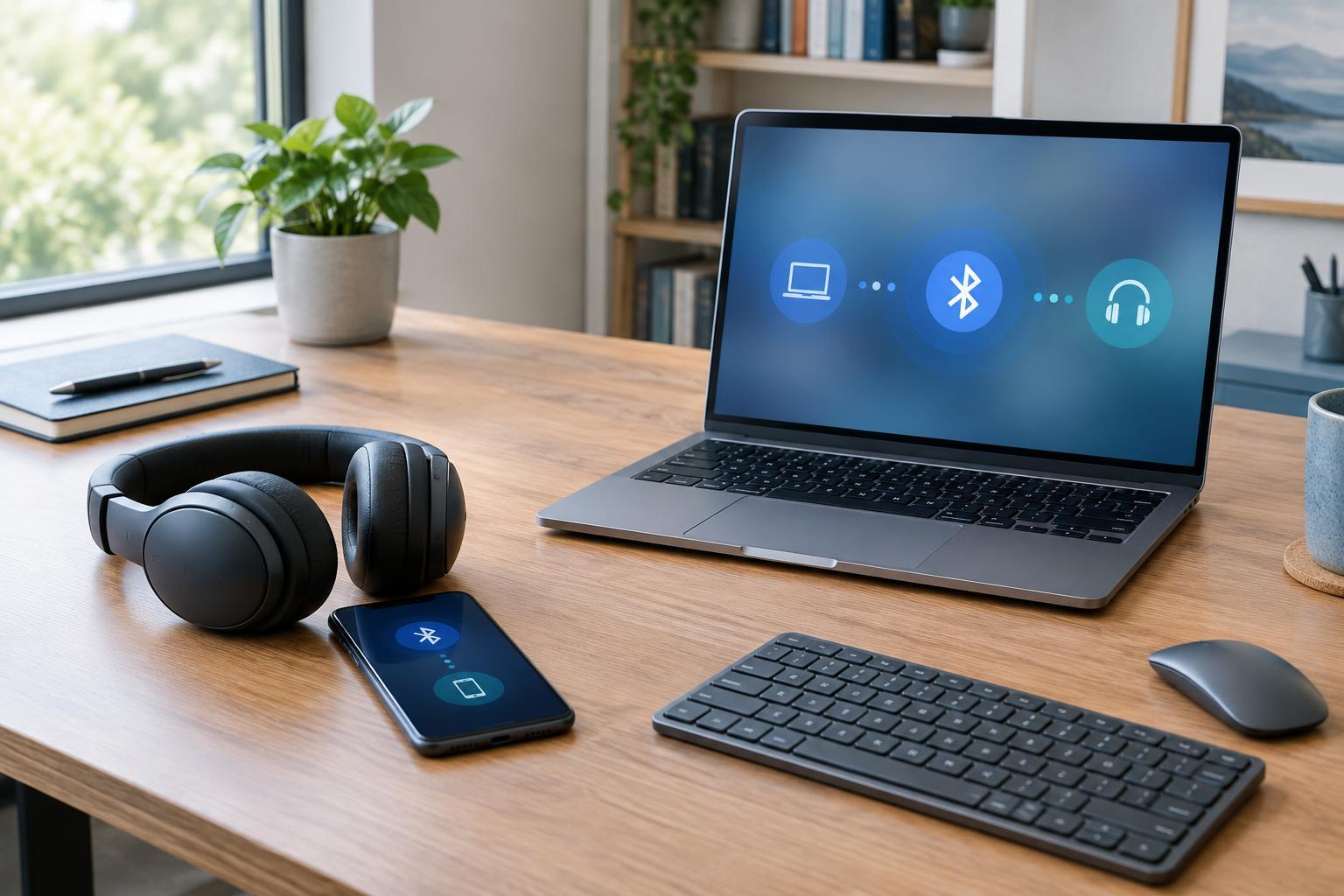
Pairing introduces two Bluetooth devices and lets them remember each other. Connecting is what happens when they establish an active link for a particular use, such as playing audio or accepting keyboard input. An accessory shown as “paired” in settings is therefore not necessarily connected or ready to use. Separating those states can save time: a device that never appears during a pairing search needs a different approach from one that connects but cuts out.
Check whether the accessory is powered on, charged, and close to the phone or computer. If it has a pairing mode, follow its instructions to enter that mode; simply turning it on may not make it discoverable. For an accessory that already appears in your device list, try selecting it there before starting a new pairing attempt. Also check the destination: headphones might be connected while sound is still routed to a laptop speaker or another output.
Rule out a competing connection
Many accessories remember multiple phones, tablets, or computers, but that does not mean they can maintain active connections to all of them. A headset may reconnect to a nearby tablet when you expected it to connect to your laptop. Some products support multipoint connections, but their switching behavior varies. Temporarily turn off Bluetooth on other previously paired devices, or disconnect the accessory from them, and then try the device you want to use.
If this works, you have found a connection-choice problem rather than a failed pairing. Decide which devices should retain the accessory in their saved lists. If you regularly switch hosts, learn how the accessory handles switching before deleting every pairing: some have a dedicated button or gesture, while others reconnect to the most recent device. Keeping a short note of that behavior can make the next switch much easier.
When pairing fails, work from the simplest fix upward
If the accessory is not discoverable, confirm it has enough power and is in pairing mode, then bring the devices close together. Turn Bluetooth off and back on at the phone or computer, and restart the accessory if possible. Try pairing again without several other accessories actively waiting to pair nearby. These steps address common setup mistakes without changing saved devices or system settings.
If the device appears but pairing repeatedly fails, remove its saved entry from the phone or computer, then follow the accessory’s instructions for clearing or replacing its pairing record if needed. Pair it again as a new device. Be deliberate with a factory reset: it may erase all remembered hosts and any custom settings. If you use the accessory with several devices, reconnect those one at a time so you can spot which step causes trouble.
For dropouts, test the environment and the workload
A connection that starts successfully but breaks up can be affected by distance, obstacles, crowded radio conditions, or low battery. Test the accessory close to the host with a clear path between them. Move away from a dense cluster of wireless devices and see whether the behavior changes. Bluetooth and some Wi-Fi networks share radio spectrum, but interference is only one possible cause; a controlled test is more useful than assuming every dropout has the same explanation.
Pay attention to when the problem occurs. If audio glitches only during calls, check which microphone and speaker the calling app selected. If a keyboard misses input only after waking from sleep, note whether waiting briefly or reconnecting restores it. If the issue follows one app but not others, inspect that app’s audio or input settings. These comparisons help distinguish a Bluetooth link problem from routing, software, or application behavior.
Make persistent problems easier to isolate
Update the phone or computer and, where the manufacturer provides a supported method, check for accessory firmware updates. Follow the manufacturer’s instructions and keep devices powered during an update. If problems continue, test the accessory with a different host, or test a different accessory with the original host. You are looking for a pattern: trouble confined to one accessory, one host, or one particular pairing.
Change one thing at a time and record what happened. For example, note whether the device connected after other hosts were disconnected, whether dropouts continued at close range, and whether re-pairing helped. If an accessory fails on multiple compatible hosts after basic checks, its support documentation or warranty options may be the next sensible stop. A repeatable description of the fault is more useful than a long list of resets tried all at once.